
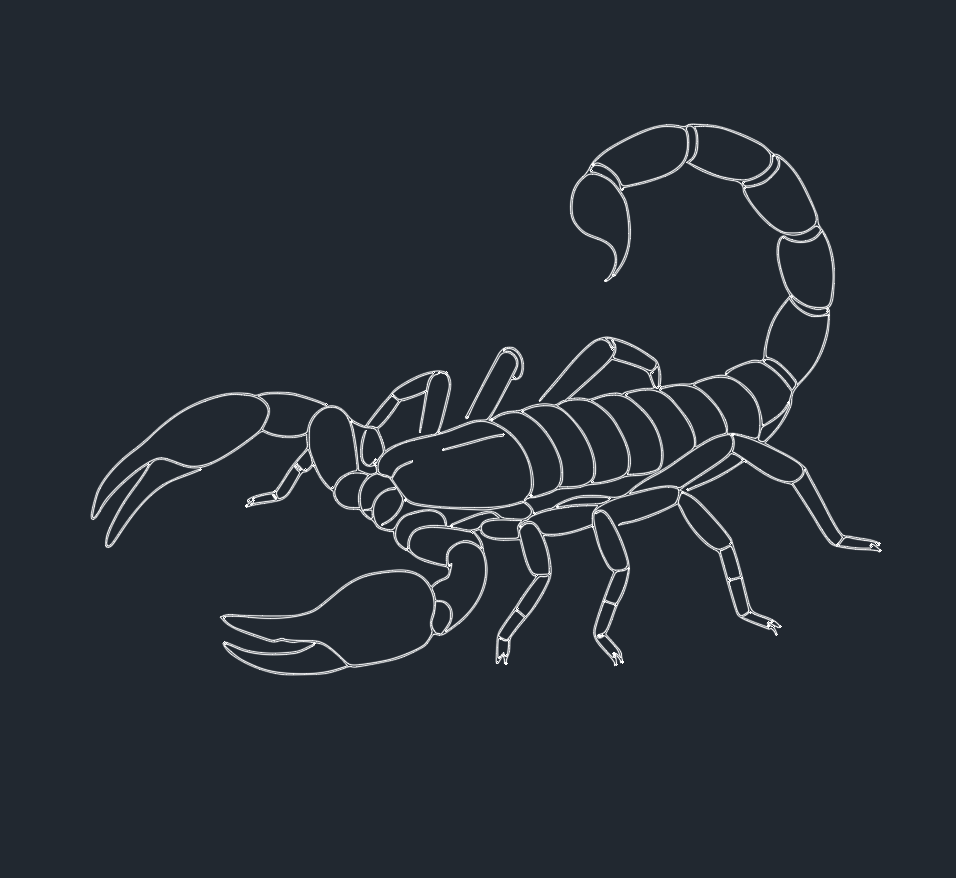
Understanding Scorpion CAD Blocks for AutoCAD and DWG Libraries
Scorpion CAD blocks are essential components for professionals seeking to enhance their AutoCAD and DWG libraries. Whether you are an engineer, architect, or CAD designer, integrating scorpion DWG files can add realism and detail to your technical drawings. This micro post explores the importance, applications, and best practices for using scorpion CAD blocks in your design projects.
Why Use Scorpion DWG Files?
Scorpion DWG files offer high-quality, standardized representations of scorpions for use in AutoCAD. These blocks are particularly useful in landscape architecture, zoological illustrations, themed parks, and biological research facilities. By adding a scorpion CAD block, designers can quickly represent fauna in site plans or educational diagrams, saving time and ensuring visual consistency.
Key Benefits of Scorpion CAD Blocks
– Time-Saving: Integrating pre-made scorpion DWG blocks eliminates the need to create detailed designs from scratch, streamlining the drafting process.
– Accuracy: Professionally crafted scorpion CAD blocks maintain scale and proportion, ensuring technical precision.
– Versatility: Scorpion blocks are compatible with various AutoCAD versions and can be easily edited to fit specific project requirements.
Applications of Scorpion CAD Blocks in Engineering and Architecture
Scorpion CAD blocks are not only decorative but functional. Engineers and architects use these blocks for several applications:
– Landscape Design: Incorporate scorpion DWG files into desert or arid landscape plans to reflect native wildlife.
– Educational Projects: Use scorpion CAD blocks in diagrams and presentations for biology classrooms or museums.
– Themed Environments: Enhance the realism of themed parks, zoos, or research centers with accurate scorpion representations.
How to Download and Use Scorpion DWG Blocks
Finding Reliable Scorpion DWG Files
To ensure compatibility and quality, always download scorpion DWG files from reputable CAD libraries. Look for blocks that are:
– Layered Appropriately: This allows for easy editing and integration.
– High-Quality and Detailed: Ensure the scorpion CAD block features accurate anatomical representation.
– Fully Compatible: Choose DWG files that support your version of AutoCAD or preferred CAD software.
Importing Scorpion CAD Blocks into AutoCAD
1. Download the scorpion DWG file from a trusted CAD library.
2. Open AutoCAD and navigate to the Insert tab.
3. Browse to the location of your scorpion DWG file and select it.
4. Place the block in your drawing, scaling and rotating as needed.
5. Edit the block using layer controls or the block editor to suit project specifications.
Best Practices for Using Scorpion CAD Blocks
To optimize both workflow and presentation quality, follow these best practices:
– Maintain Consistent Scale: Ensure the scorpion CAD block matches the scale of your drawing.
– Use Layers: Assign scorpion blocks to dedicated layers for easier management and visibility control.
– Annotate: Clearly label scorpion blocks within your drawings for clarity, especially in educational or presentation materials.
– Update Libraries: Regularly update your DWG library with new or improved scorpion CAD blocks to stay current with industry standards.
Enhancing Your DWG Library with Scorpion CAD Blocks
A well-organized DWG library with diverse CAD blocks, including scorpion representations, improves design efficiency and project quality. By regularly incorporating detailed scorpion DWG files, you create a versatile resource for a range of projects, from ecological site plans to themed architectural presentations.
Conclusion
Scorpion CAD blocks are valuable assets for engineers, architects, and CAD designers looking to enrich their AutoCAD and DWG libraries. By leveraging high-quality scorpion DWG files, design professionals can streamline workflows, ensure technical accuracy, and create engaging, realistic drawings. Always source your scorpion CAD blocks from reputable libraries to guarantee compatibility and quality, and follow best practices to maximize the impact of these versatile resources in your next project.
Leave a Reply
You must be logged in to post a comment.